Your Pin description is the small block of text under the title. Most people skip it. That is a mistake, because it is one of the places where Pinterest learns what your Pin is about.
The good news is that AI can write a first draft in seconds. The catch is that a raw AI draft often sounds stiff and vague. This guide shows you a simple way to get a useful draft, then make it sound like you.
The Short Answer
A good Pin description does three things. It uses the words people type into Pinterest. It says what the reader will get when they click. It sounds like a real person wrote it. AI can help with the first draft. You still need to check the keyword, fix the tone and make sure every line is true.
What a Pin Description Actually Does
A Pin has an image, a title and a description. The title is the bold line. The description sits below it when someone opens the Pin. Pinterest reads it, along with your title and image, to work out what the Pin is about and who might want to see it.
Think of it like this. The image gets the stop. The title gets the click. The description helps Pinterest match your Pin to the right searches, and it helps a curious reader decide if your post is worth their time.
If you have not picked your keywords yet, start there. The Pinterest for bloggers beginner’s guide explains how Pinterest search works in plain words.
Why Use AI for Descriptions at All?
Writing a fresh description for every Pin is slow. If you make several Pins per post, it adds up fast. AI is good at three jobs here:
- Turning your blog post into a short summary.
- Offering several different ways to say the same thing, so your Pins do not all read alike.
- Fitting your keyword into a natural sentence.
AI is not good at knowing your reader, your honest opinion, or what is actually in your post. That part is your job. Treat the AI as a quick helper, not the author.
Before You Start: Know Your Keyword
AI cannot guess which words your readers search for. If you give it nothing, it will invent something generic. So pick one main phrase for each Pin first. It should be a plain phrase a real person would type, like “easy weeknight dinners” or “blog post ideas”.
If you need help finding phrases, read How to Use AI for Keyword Research. Then come back here with your phrase in hand.
Step 1: Gather Four Facts About Your Post
Before you open any AI tool, write down four short facts:
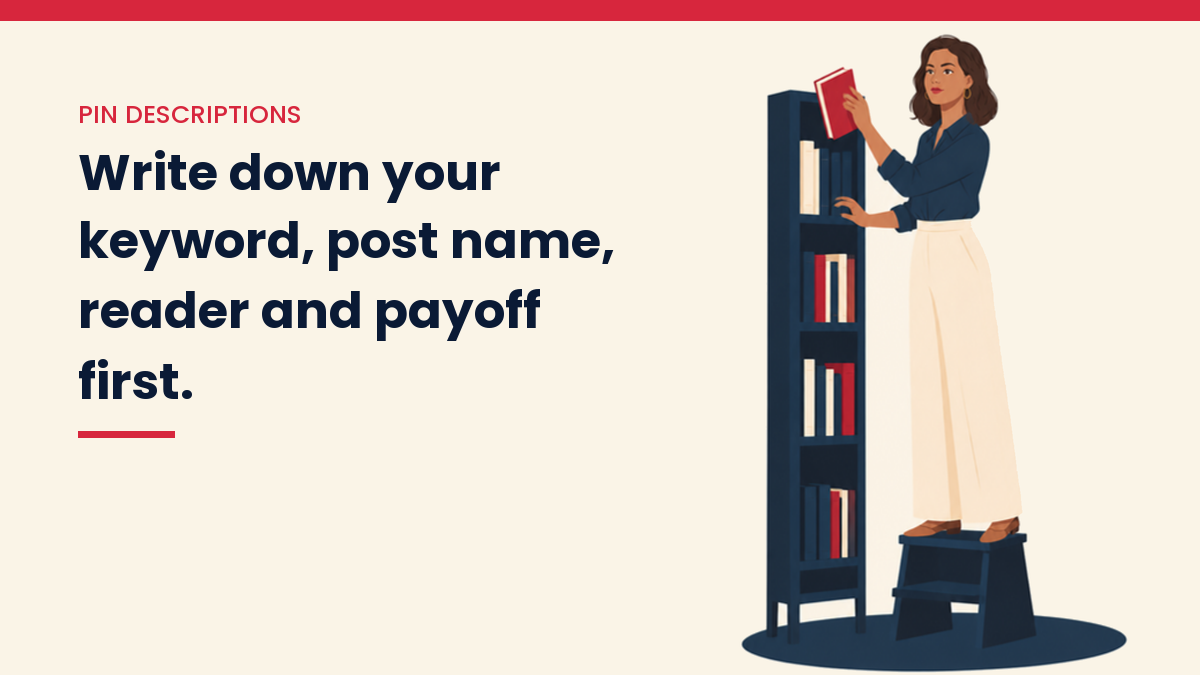
- The main keyword phrase for this Pin.
- The name of your blog post.
- Who the post is for, in one line. For example: “beginners who have never used Pinterest”.
- What the reader gets, in one line. For example: “a simple checklist they can follow today”.
This takes two minutes, and everything after it depends on it. An AI tool with good facts gives you a good draft. An AI tool with no facts gives you fluff.
What this looked like in my own work: on my crafts sites, most articles had no search description at all, the short text Google shows under a result. Instead of writing thousands of them from scratch, I built each one from the article’s own opening paragraph. Posts with a description went from 38.4% to 98.5%, and none of them were duplicates. Those were search descriptions, not Pin descriptions, but the lesson carries over: start from the words already in your post, not from a blank page.
Step 2: Use a Short, Clear Prompt
You do not need a clever prompt. Plain words work well. Here is one you can copy and change:
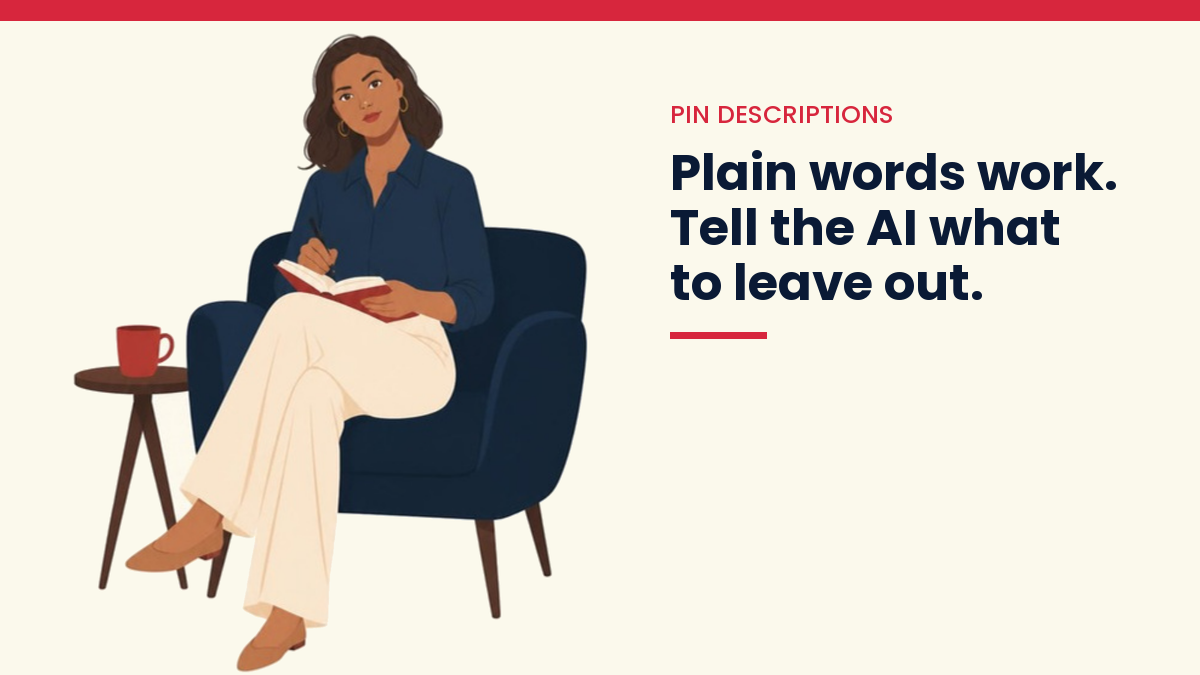
Write 3 Pinterest Pin descriptions for a blog post called “[post name]”. The main keyword is “[keyword]”. The reader is [who it is for]. They will get [what they get]. Use simple words, a friendly tone and short sentences. Put the keyword in the first sentence. Do not use hashtags. Do not make promises about results.
Notice the last two lines. They stop the tool from adding things you do not want. If your first answer is not right, tell the tool what to change. Say “shorter” or “friendlier” or “less salesy”. It will try again.
Step 3: Pick One and Check the Facts
Read all three drafts. Pick the one that sounds most like a person talking. Then check it line by line.
- Does it say anything your post does not actually cover? Cut it.
- Does it promise a result, like “double your traffic”? Cut it. Nobody can promise that.
- Does it name a tool, price or number? Check it is correct, or remove it.
AI tools can sound confident when they are wrong. A description that promises something your post does not deliver can make readers leave quickly. That is bad for them and for you.
Step 4: Put the Keyword Up Front, Then Make It Sound Like You
Pinterest shows only the first part of a long description in many places. So put your main phrase and your main benefit near the start. Save the extra detail for later in the text.
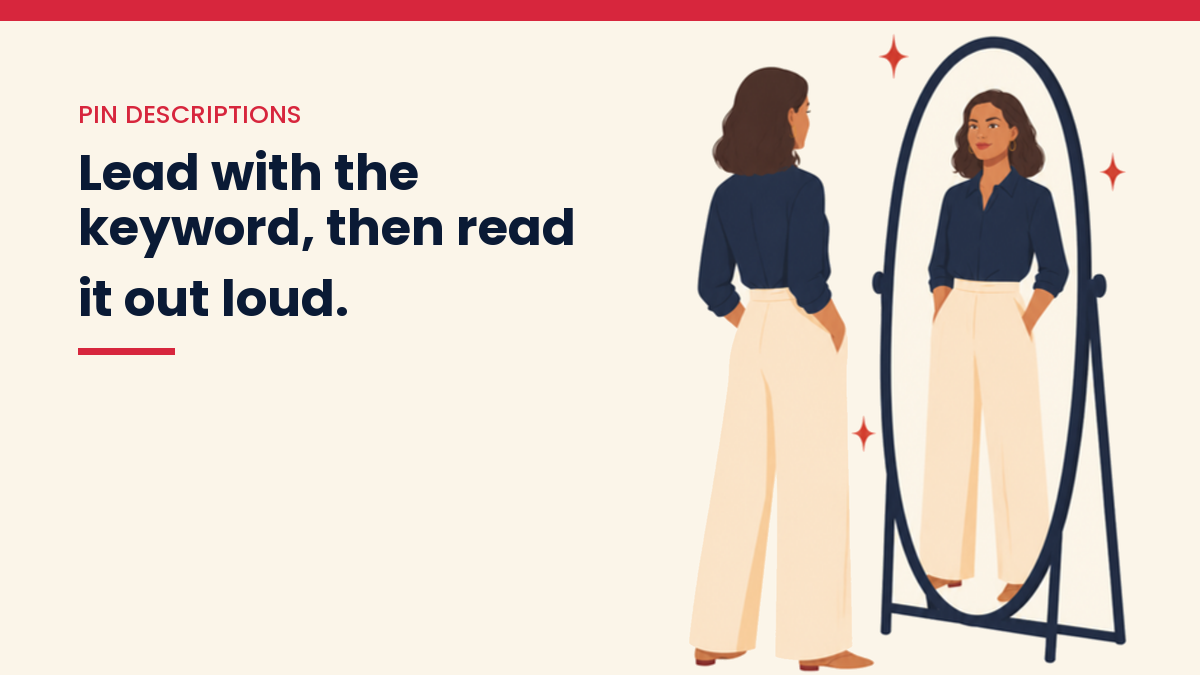
Then read it out loud. If you would never say it to a friend, change it. Here is a quick before and after.
Raw AI draft: “Discover the power of Pinterest descriptions with this comprehensive guide to transforming your content strategy.”
After your edit: “Pinterest descriptions help your Pins show up in search. Here is how to write one in a few minutes, step by step.”
The second one is plain, clear and true. It also puts the keyword first. That is the pattern to aim for.
Step 5: Keep a Short Template Bank
Once you have a few descriptions you like, save them. Keep them in a simple note or spreadsheet. Next time, you can ask the AI to follow your favorite examples. Paste two of your favorites into the prompt and say “write in this style”.
This does two good things. It saves time. It also keeps your voice steady across all your Pins, so they feel like they come from one person.
Mistakes to Avoid
- Stuffing keywords. Repeating the same phrase over and over reads badly and does not help. Use it once or twice, naturally.
- Copying the same description onto every Pin. If you make several Pins for one post, write a different description for each. Change the angle, not just a word or two.
- Making claims you cannot back up. Skip words like “guaranteed” and “proven”. Describe what the post covers instead.
- Leaving the draft untouched. A raw AI draft is a starting point. Always edit it.
- Matching nothing. Your description must match what is on the page you link to. If a reader clicks and finds something else, they leave.
A Note on Hashtags and Length
Pinterest has changed how it treats hashtags and text over the years. Many guides now say hashtags do little, so I leave them out. The Pin creation tool also shows you how much room you have, so watch the counter there. Pinterest’s own help pages are the place to check the current limits, because these details can change. I could not confirm the exact numbers on an official page today, so I am not giving you a figure here.
What AI Does Not Replace
AI can speed up the writing. It cannot tell you what your readers need. It does not know what is true on your blog. And it cannot tell you whether a Pin is working.
Give your Pins time. Watch which ones get saves and clicks, then write more like those. If you want to know how long to wait, read How Long Does Pinterest Traffic Take to Grow? It is slower than most beginners hope, and that is normal.
Questions People Ask
Do Pinterest descriptions really matter?
They help Pinterest understand your Pin and they help readers decide to click. They are one piece of the puzzle, along with your image, title and board. They will not fix a weak image or a post nobody wants, but they do help.
Can I use the same description for every Pin?
It is better not to. Write a new one for each Pin, even if the post is the same. A different angle can reach different searchers, and it keeps your Pins from looking like copies.
Which AI tool should I use?
Any general chat tool can do this job. The tool matters less than your four facts and your final edit. Try one, and if the drafts sound stiff, change the prompt before you change the tool.
Is it okay to use AI-written text on Pinterest?
Using AI to help you write is common. What matters is that the final text is accurate, useful and honest. Check Pinterest’s current rules in its own help pages and policies, since they can change.
Where to Go From Here
Pick one Pin you already have. Write down the four facts. Run the prompt, edit the draft you picked, and replace the old description. That is the whole process. Do it once and the next one is faster.
If you are building the rest of your Pin text, How to Create Pinterest Titles That Get Clicks is the natural next read. Titles and descriptions work well as a pair.
If you want the step by step version, my Pinterest Traffic System ($47) is the exact setup I use for Pin text, boards and scheduling on my own sites.
You Might Also Like
- Pinterest for Bloggers: The Beginner’s Guide
- How Long Does Pinterest Traffic Take to Grow?
- How to Use AI for Keyword Research
- How to Write Blog Posts With AI
- How to Humanize AI-Generated Content
- SEO for Beginners
- How to Build an AI-Powered Content System
Discover more from VivaMomentum
Subscribe to get the latest posts sent to your email.