The Short Answer
A Pinterest board is a folder for Pins about one topic. For a blogger, boards do two jobs. They help Pinterest understand what your Pins are about, and they help people find more of your work. Start with a small set of boards, give each one a clear topic name, add a short description, and only pin things that fit. That is most of it.
If you are new to the platform, my beginner’s guide to Pinterest for bloggers covers the bigger picture. This article stays on one thing: the boards.
What Pinterest Boards Do for a Blogger
Think of your Pinterest profile as a small library. Each board is a shelf. A Pin is a book on that shelf. When the shelves are labeled clearly, a visitor knows where to look. Pinterest also reads those labels. It uses the board name, the board description and the Pins inside to work out what your account is about.
That is why a board called “Stuff I Like” does nothing for you. A board called “Blog Traffic Tips for Beginners” tells people and Pinterest exactly what to expect.
One honest note. Nobody outside Pinterest knows exactly how its system weighs boards. Most of the advice you will read, including this article, comes from creators, tool companies and common sense. Treat it as a good starting point, not a rule that guarantees results.
Step 1: Pick Your Main Topics
Before you make a board, write down what your blog is about. Then list three to six topics your posts cover. These become your core boards.
Say your blog is about blogging with AI. Your topics might be AI tools, writing blog posts, getting traffic, and making money online. Each topic can become one board.
You do not need a board for everything. Several Pinterest creators in the official business community suggest starting with a modest number of well-built boards rather than dozens of thin ones. Tailwind, a Pinterest scheduling tool, also says there is no cap on boards, so you can add more later. Start small. Add when you have Pins to fill a new board.
Step 2: Name Each Board With Words People Search
Pinterest is a search engine as much as a social site. So name boards with the words a person would type.
- Clear: “AI Tools for Bloggers” beats “My Robot Friends”.
- Specific: “Pinterest Tips for Beginners” beats “Pinterest”.
- Natural: write it like a person would say it. Do not cram in five keywords.
- Short: if the name gets cut off on a phone, it is probably too long.
Cute names feel fun, but they hide the topic. Pin & Plan, a Pinterest marketing podcast, made this point in a recent discussion on the Pinterest business community: use the words people really search for, not clever ones.
Not sure which words to use? Type your topic into the Pinterest search bar and look at the suggestions that appear. You can also use my guide on choosing keywords for a new website, or try the steps in how to use AI for keyword research to get a list of phrases to test.
Step 3: Write a Short Board Description
The description is the small line of text under the board name. Many people skip it. Please do not.
Write two or three plain sentences. Say what the board is about and who it helps. Use your main phrase once, in a normal sentence.
Here is an example for a board called “Pinterest Tips for Beginners”:
Simple Pinterest tips for new bloggers. Learn how to set up your account, write clear Pin titles, and send visitors to your blog.
Tools and guides disagree on the right length. Tailwind says descriptions have a character limit, and PinGenerator suggests a few short sentences. Pinterest can change these limits, so check the board settings screen in your own account for the current rule. Short and clear is always safe.
Step 4: Fill Each Board With the Right Pins
A board works well when everything in it fits the topic. If someone opens “AI Tools for Bloggers” and finds a banana bread recipe, they leave.
Your own Pins come first. Each time you publish a post, save its Pin to the board that fits. Then add a few Pins from other sites on the same topic, so the board is not only about you. This mix looks natural and is useful to the person browsing.
Here is why I care about this. When I checked the Pinterest account for one of my crafts sites, about 63,500 of its roughly 68,400 Pins (93%) sat on one catch-all board, while the topic boards next to it held far fewer. Nobody had planned that. My scheduler had simply been sending almost everything to the same place. I changed it so each new Pin goes to the board whose topic matches it, with a limit on how many Pins one board can take in a single run. The lesson for a new blogger: decide your boards first, then make sure every Pin has a home that fits.
If you do not have many Pins yet, that is fine. I would rather you have five good boards with a few Pins each than fifteen empty ones. To make more Pins from one article, see turning blog content into Pinterest content, or batch your work using the ideas in a 30-day content plan with AI.
Step 5: Choose a Cover and Use Sections If You Need Them
Every board shows one cover image. Pick a clear one that matches the topic and looks tidy next to your other covers. PinGenerator notes that board covers are not a big ranking factor, so do not spend hours on this. Spend minutes.
Sections are folders inside a board. They help when one board gets big. A board called “Blogging Tips” could hold sections for “Writing”, “SEO” and “Traffic”. If a board has only a handful of Pins, skip sections. If a section grows large and deserves its own space, make it a separate board instead.
Secret Boards, Group Boards and Old Boards
Secret boards
A secret board is hidden from the public. You can make it public later. Tailwind describes this option in its board guide. It is handy when you want to build a board before you show it. It is also handy for a board you want to pause. Remember that a hidden board is not helping anyone find you while it is hidden.
Group boards
A group board lets other people add Pins to your board. Some bloggers used these a lot in the past. I would not build your plan around them. A board that other people fill can drift off topic. Check the quality of any group before you join, and ask yourself if you would be happy for a stranger to see those Pins under your name.
Old boards
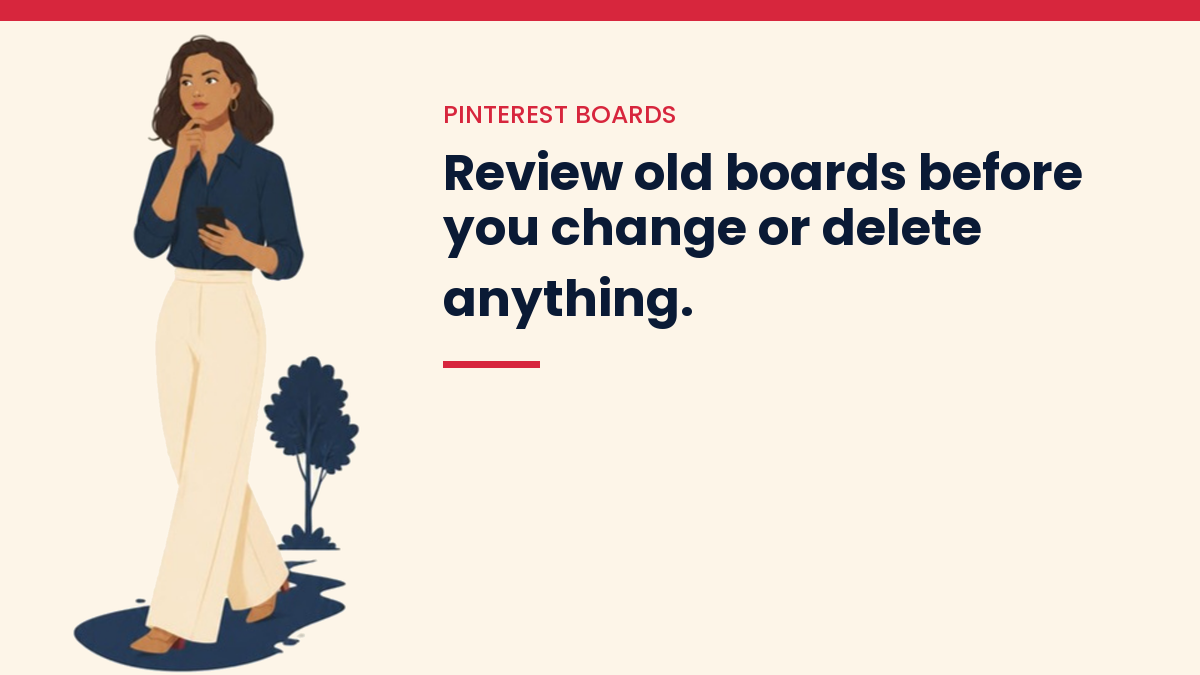
Maybe you already have boards from years ago. Do not rush to delete them. A Pinterest creator in the business community warns that deleting a board can remove the activity on the Pins inside it. A safer way is to review each one:
- Keep it if it still fits your topics.
- Rename it and rewrite its description if the topic is right but the name is weak.
- Merge it into a stronger board if two boards cover the same thing.
- Hide it as a secret board if it no longer fits but you are not ready to let go.
Take your time. Pinterest results are slow anyway, as I explain in how long Pinterest traffic takes to grow.
Can AI Help With Boards?
Yes, for the boring parts. You can paste your blog topics into an AI tool and ask for ten board name ideas written in plain words. You can ask it to draft a two-sentence description for each. Then you edit.
Here is a prompt you can copy:
My blog is about [your topic] for [your reader]. Suggest 8 Pinterest board names in plain words that a beginner might search for. Then write a two-sentence description for each. Do not use hype words.
Check every name against the real Pinterest search bar. AI can guess, but it cannot see what people are typing today. And read each description out loud. If it sounds like a robot, change it. My guide to building an AI-powered content system shows how to fit steps like this into a simple routine.
Mistakes to Avoid
- Too many boards too soon. Empty shelves look unfinished.
- Vague names. “Ideas” and “Favorites” tell nobody anything.
- Stuffing keywords. A name full of repeated phrases reads badly and helps no one.
- Pinning off-topic Pins. Keep each board on its subject.
- Deleting boards in a hurry. Review first, then decide.
- Expecting fast results. Boards set the stage. Good Pins and patience do the work.
A Simple Checklist
- I listed my three to six main blog topics.
- Each core board has a plain, searchable name.
- Each board has a short, natural description.
- Each board has a clear cover.
- I only pin things that fit the board.
- I reviewed old boards before changing anything.
Where to Go From Here
Set up your first three boards this week. Name them, describe them, and add the Pins you already have. Then add one new Pin each time you publish a post. That small habit is enough to begin.
Pinterest takes patience, and that is normal. You do not need a flawless setup. You need a clear one.
If you want the step by step version, my Pinterest Traffic System ($47) is the exact setup I use for boards and Pins on my own sites.
Questions People Ask
How many Pinterest boards should a blogger have?
There is no official number. Creators in the Pinterest business community often suggest starting with a modest set of focused boards rather than many thin ones. Begin with the topics your blog covers and add boards as you add Pins.
Should I make my boards secret?
Only if they are not ready, or if you want to pause one. A secret board is hidden, so it will not be found by searchers until you make it public.
Do board descriptions matter?
They help people and Pinterest understand the board. Write two or three clear sentences. Check the current limit in your own account, because it can change.
Can I rename a board?
Yes. Renaming is often better than deleting. Pick a clearer name and update the description to match.
You Might Also Like
- Pinterest for Bloggers: A Beginner’s Guide
- How Long Does Pinterest Traffic Take to Grow?
- How to Turn Blog Content Into Pinterest Content
- How to Choose Keywords for a New Website
- How to Use AI for Keyword Research
- How to Create Topic Clusters for SEO
- How to Write Blog Posts With AI
- How to Build an AI-Powered Content System
Discover more from VivaMomentum
Subscribe to get the latest posts sent to your email.