The Short Answer
Pinterest’s own scheduler is free, built into a business account, and lets you schedule a Pin up to 30 days ahead, with up to 10 Pins waiting at a time. Tailwind is a separate paid tool (with a free start) that adds helpers for posting times, spacing, bulk Pin making and writing Pin text. A practical way for a beginner is to start with Pinterest’s own tool and only pay for Tailwind when the 10-Pin limit or the manual work starts to slow you down.
You want your blog posts to show up on Pinterest, but you cannot sit and pin all day. This page puts the two options side by side. I will not name a winner, because the right pick depends on how you work. I will show what each one does, who it suits, and what to check before you pay.
How I got my facts
I have used Tailwind myself in the past. I now schedule my own Pins with a different tool, Blotato. So I know what scheduling feels like, but I am not here to tell you what results you will get.
For Pinterest’s scheduler, I read the Pinterest help page on scheduling Pins on November 10, 2026. For Tailwind’s features and prices, I read Tailwind’s own pricing page the same day. Both change from time to time, so check them again before you decide.
A note on links: I’m not an affiliate for Tailwind or Pinterest, so nothing in this comparison pays me either way. I do have an affiliate link for Blotato, the tool I use now, but I don’t link it on this page.
What is the difference between Tailwind and Pinterest’s scheduler?
Both do the same core job: you make a Pin, pick a day and time, and it goes out without you. The difference is how much room and help you get around that job.
| Pinterest’s own scheduler | Tailwind | |
|---|---|---|
| What it is | A feature inside a Pinterest business account | A separate tool you log in to |
| Extra account to manage | No | Yes |
| How far ahead | Up to 30 days | Not listed on the pricing page |
| How many Pins can wait in the queue | Up to 10 at a time | Not listed on the pricing page |
| Change a Pin after scheduling | Date, title, board, description and link, but not the image or video | Not listed on the pricing page |
| Picks posting times for you | Not on the help page | Yes, a feature called SmartSchedule |
| Writes titles and descriptions | Not on the help page | Yes, an AI helper called Ghostwriter |
| Makes many Pins at once | Up to 10 images at once on desktop, each one a separate Pin | Yes, with Tailwind Create |
| Cost | No separate fee | Free start with no credit card, then paid plans |
What does Pinterest’s own scheduler do?
It lets you publish a Pin later instead of now, right inside Pinterest. You need a Pinterest business account. On desktop, you create a Pin, fill in the title, description, link and board, then choose a date and time instead of publishing straight away. Your scheduled Pins show on your profile, above your published ones.
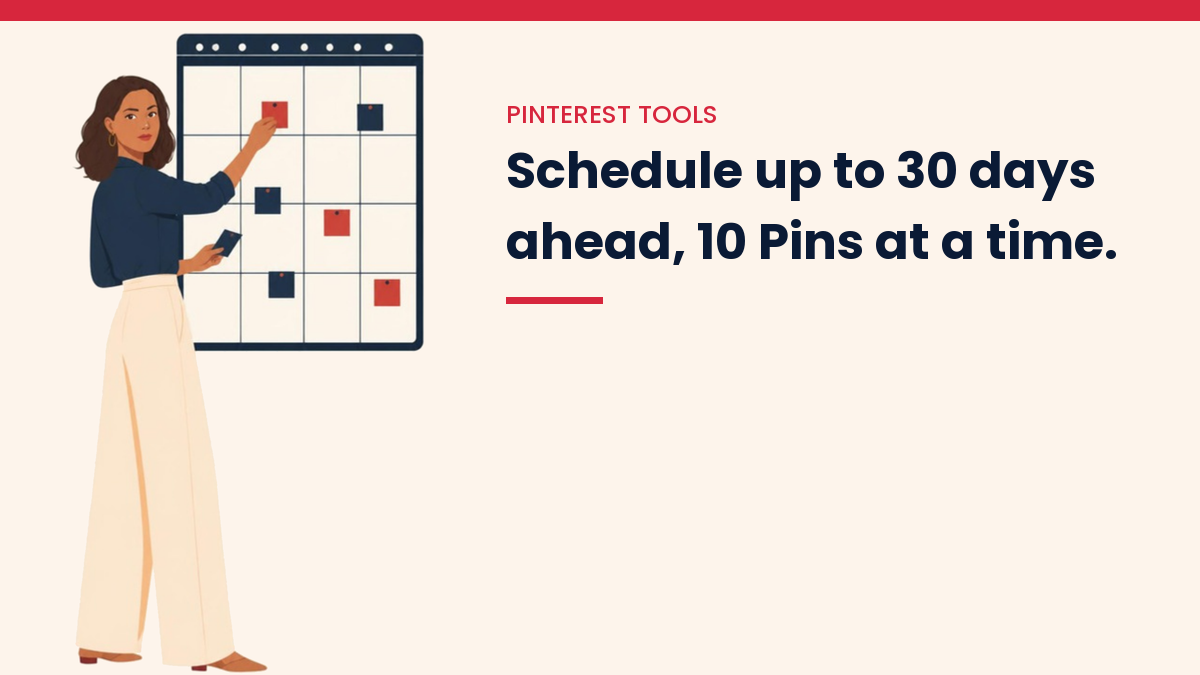
The two limits that matter most: a Pin can be scheduled up to 30 days ahead, and you can have up to 10 Pins scheduled at once. After that, you wait for some to go out before adding more. You can still change the date, title, board, description and link of a scheduled Pin, but not its image or video.
Good for:
- Bloggers who are just starting and want to keep things simple.
- People who pin a few times a week, so 10 waiting Pins is plenty.
- Anyone who does not want another login or another bill.
Things to think about
- You pick every day and time yourself.
- The 10-Pin limit means you top up the queue often if you pin every day.
- If you want help writing Pin text, you write it yourself or use another tool.
What does Tailwind do, and what does it cost?
Tailwind is a tool made for Pinterest scheduling, with a free start and paid plans after that. Its pricing page lists a drag-and-drop planner, SmartSchedule for posting times, rules for spacing out Pins, and a browser extension for making and scheduling Pins from your own site. It also lists Tailwind Create for making many Pins at once, and Ghostwriter for AI titles and descriptions.
It says you can start free with no credit card. Paid plans are split up. On the day I looked, the plan with Pin scheduling and creation showed $17.99 a month, and there were separate plans for Pinterest SEO and Pinterest engagement that say they do not include Pin scheduling. So if scheduling is what you want, read which plan includes it before you pay.
Good for:
- Bloggers who pin often and want to plan more than 10 Pins in one sitting.
- People who like the tool to suggest posting times.
- Anyone who wants help with titles, descriptions, and making many Pins.
Things to think about
- It is one more account to manage.
- The plan names and credits can feel confusing at first. Read what each plan includes.
- You pay every month once you move past the free start.
Which one should a beginner pick?
Pick the one that matches how many Pins you make and how much help you want. These five questions sort it out.
- How many Pins will I post each week? If 10 waiting Pins covers it, Pinterest’s own tool is enough. If you want weeks of Pins planned in one go, a separate tool helps.
- How much do I want to spend? If the answer is nothing for now, start with what Pinterest gives you.
- Do I get stuck writing Pin text? If yes, a tool with writing help may feel good.
- Do I like adding new tools? If you feel overwhelmed already, fewer tools is calmer.
- Am I just testing Pinterest? Then keep it light until you see it is worth your time.
What can a scheduler not do for you?
A scheduler saves you time, and that is all. It posts the Pin when you are not there. It does not make a weak Pin strong, it does not pick keywords for you, and it does not fix a blog post nobody wants to read.
It also posts exactly what you give it. When I first set up a queue of 16 scheduled posts for VivaMomentum, I asked to see the queue before anything went live. 5 of the 16 were old articles that did not fit the plan, like a manifestation post lined up for a business board. I cleared the queue and now it only pulls from the site’s main topics. The tool did its job on time. Checking what was in it was my job.
So before you worry about which scheduler to use, check the basics. Does the Pin have a clear title? Does the description use words people search for? Does the link go to a post that matches the Pin? My guides to Pinterest titles that get clicks and Pinterest boards for bloggers cover those two pieces.
Scheduling does help with one thing a lot: showing up on a steady rhythm. Many beginners pin a lot for a week and then stop. A schedule lets you sit down once, plan a batch, and get on with your week.
Mistakes beginners make with schedulers
- Paying before they have Pins. A tool cannot schedule Pins you have not made yet. Make the Pins first. Ten Pins from one blog post is a good batch to start with.
- Posting the same Pin many times in a row. Pinterest likes fresh Pins. Space out Pins that go to the same link.
- Skipping the boards. Each Pin should go to a board that matches it. I cover that in my guide to Pinterest for bloggers.
- Trusting a price they saw months ago. Plans and prices change. Check the page again on the day you buy.
- Expecting fast traffic. Even with a steady schedule, Pinterest is slow at first.
A simple way to start
You do not have to choose forever. Pinterest takes time to grow, as I wrote in how long Pinterest traffic takes to grow. So there is no rush to pay for anything on day one.
- Make a few Pins for one blog post. If you need a plan, read how to turn blog content into Pinterest content.
- Schedule them with Pinterest’s own tool for two or three weeks, keeping the queue at 10 or fewer.
- Notice what slows you down. Is it picking times? Writing text? Topping up the queue?
- If one thing keeps slowing you down, look at whether a paid tool fixes that exact thing.
This way you pay for a real problem, not a guess.
What about other tools?
These two are not your only choices. Other schedulers exist, and I use one called Blotato for my own Pins. I will cover more tools in a separate post. For now, the question is simply: do you need help beyond what Pinterest gives you for free, or not?
Final thoughts
Both tools can get your Pins out on time. Pinterest’s own scheduler keeps things simple and costs nothing extra. Tailwind adds helpers and room, and it asks for a monthly fee. Neither one will make Pinterest work if your Pins and posts are not good. Start small, notice what slows you down, and add a tool only when you feel that pain.
If you want the step by step version, my Pinterest Traffic System ($47) is the exact setup I use, scheduling included. It is my own guide, not an affiliate product.
Want the simple setup I use to plan a week of content? Grab the free Starter Kit below.
Questions people ask
Is Pinterest’s scheduler free?
There is no separate fee for it. It is part of a Pinterest business account, and you schedule Pins as you create them.
How far ahead can I schedule Pins on Pinterest?
Pinterest’s help page says up to 30 days ahead, with up to 10 Pins scheduled at a time.
Can I change a Pin after I schedule it?
Yes, partly. You can change the publish date, title, board, description and link. You cannot change the image or video, so check those before you schedule.
Do I need Tailwind to grow on Pinterest?
No. A scheduler only saves time. Clear Pin titles, matching boards and useful posts do the real work, and you can start all of that with Pinterest’s own tool.
You Might Also Like
- Pinterest for Bloggers: A Beginner’s Guide
- How to Turn Blog Content Into Pinterest Content
- How to Create 10 Pinterest Pins From One Blog Post
- How to Create Pinterest Descriptions With AI
- How Long Does Pinterest Traffic Take to Grow?
- How to Automate Your Blog Content Workflow
- How to Batch Create Blog Content With AI
Discover more from VivaMomentum
Subscribe to get the latest posts sent to your email.